
Quick Solution
The methods below work for GoPro Hero 13/12/11/10/9/8.
If you don’t have time to read all the article until the end, you can watch this video were I explain how to connect recent GoPro model to TV monitor:

HDMI

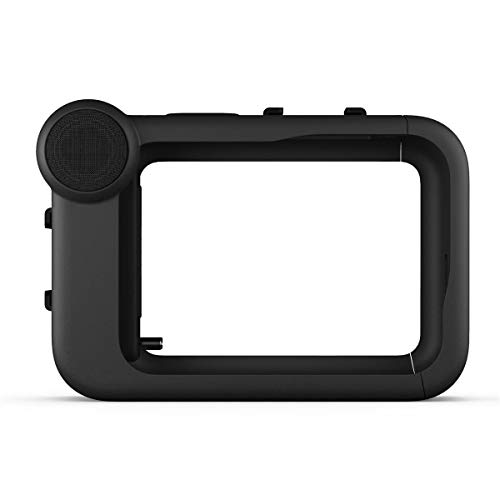


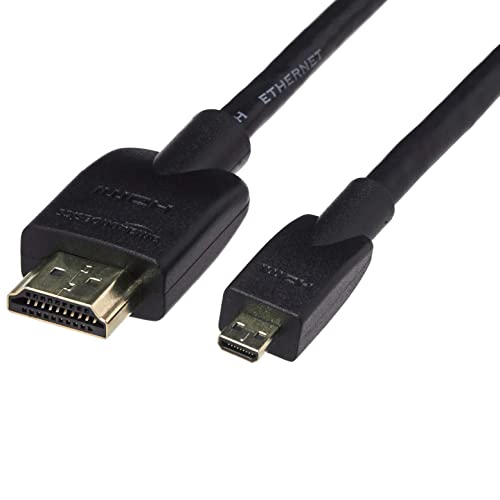
Which GoPros Have a Built-In HDMI Port?
If you’re on an older camera, you might not need the Media Mod at all. The Hero 4, 5, 6 and 7 Black all have a micro-HDMI port built into the camera, so a single micro-HDMI to HDMI cable does the job. The exceptions are the Hero Session, the Hero 7 White and Silver, and the GoPro Max — those don’t support HDMI output at all, so use the wireless or USB methods below. Every model from the Hero 8 onwards needs the Media Mod to get an HDMI port.
Wireless
Going wireless is the way to go, especially when it comes to enjoying your GoPro footage on your TV without the hassle of cables.
Here are a couple of methods to get your GoPro footage up on the big screen wirelessly:
- First, transfer your footage to a computer or laptop. From there, you can use Apple AirPlay or Google Cast (Chromecast) to mirror the footage onto your TV. Check out how to connect your GoPro to your computer for more details.
- Alternatively, you can cast directly from your smartphone. The quickest phone route is the Quik app: play your clip, then tap the AirPlay or Google Cast icon (or use your phone’s screen mirroring) to send it to the TV. The specific GoPro model you have isn’t crucial for this method since the casting happens through your computer or phone, not directly from the camera.
However, the key factor here is the capability of your computer or smartphone. It needs to be powerful enough to stream high-resolution videos smoothly and must have the right software or app to mirror the content to your smart TV.

USB / SD Card
You have a couple of options for watching your GoPro footage on your TV. One method involves using a computer, while the other is more direct and skips the computer step.
- For the first method, transfer your GoPro videos to a USB flash drive using a computer. Once transferred, plug the flash drive into the USB port on your TV.
- Alternatively, you can take the microSD card out of your GoPro, place it into a USB adapter, and then plug the adapter directly into your TV’s USB port.
If you’re planning to watch your videos in 4K resolution, be sure to use a USB 3.0 flash drive, as the older USB 2.0 version doesn’t support 4K video playback.

Thanks for reading!
I hope this guide helped you learn all about how to connect GoPro to TV 🙂
Sharing is Caring ❤️
If you found this article useful, please share it on social media with your family and friends!
Related Articles:
- GoPro to OBS: How to Use GoPro As Webcam + OBS
- How to Transfer GoPro Videos to Computer (Windows & Mac)
- GoPro Vlog Setup: 5 Best Vlogging Kits + Vlog Tips
- 10 GoPro Photography Tips for Epic Shots (+ Best Settings)
Frequently Asked Questions
Do I need the GoPro Media Mod to connect my camera to a TV?
Yes, if you’re running a Hero 8 through Hero 13, since none of those models have a built-in HDMI port. If you’re on a Hero 4 through 7 Black, you can skip the Media Mod entirely and plug a micro-HDMI cable straight into the camera.
Can I connect my GoPro to a TV without any cables at all?
Yes. Sync your clips to your phone through the Quik app, then use AirPlay on iPhone or Google Cast on Android to mirror them onto a smart TV or streaming stick. It’s the fastest option if you don’t want to buy an HDMI adapter or deal with cables.
Which GoPro models can’t output to a TV at all?
The Hero Session, Hero 7 White and Silver, and GoPro Max don’t support HDMI output, even with the Media Mod, since they were never built with a video-out connector. If you own one of these, casting from your phone or playing files off a USB drive or microSD card are your only big-screen options.
What kind of HDMI cable should I buy for the Media Mod?
I always recommend at least a High-Speed HDMI cable rated for 4K, ideally 18Gbps, since the Media Mod’s port is micro-HDMI (Type D) on the camera end. A cheap, low-spec cable is the most common reason people get a blank screen or a laggy picture.
Can I just plug my GoPro’s memory card into my TV’s USB port?
Yes, as long as your TV has a USB media player built in. Pop the microSD card into a USB adapter and plug it directly into the TV. Use a USB 3.0 adapter or drive if you’re playing back 4K footage, since USB 2.0 often can’t push 4K smoothly and some TVs will refuse to play it at all.
Does one Media Mod work with every recent GoPro model?
The current Media Mod (model ADFMD-001) covers the Hero 9, 10, 11, 12, and 13 Black. The original Hero 8 Black needs its own earlier Media Mod version, since the camera’s port layout is slightly different on that model.

