
If you’re the proud owner of a GoPro Hero 12, you’ve just opened the door to a world of stunning possibilities. From capturing breathtaking travel vlogs to adrenaline-pumping POV shots and everything in between, your Hero 12 is your trusty companion.
In this article, we’re here to guide you through a comprehensive cheat sheet of settings that will elevate your content creation game to new heights.
GoPro HERO 12 Settings Cheat Sheet
Different adventures call for different settings, and the GoPro Hero 12 is equipped with a plethora of features to cater to your every need. Whether you’re an aspiring filmmaker, a seasoned adventurer, or just looking to up your selfie game, this cheat sheet will be your go-to resource.
To begin with, check out my GoPro Hero 12 settings overview:

Let’s embark on a journey to uncover the optimal settings for various activities and scenarios:
Travel / Vlog / Documentary
Are you ready to chronicle your travels and create compelling documentaries? Here’s how to set up your HERO 12 Black for these adventures:
Video Settings
- 5.3K30, Wide Lens
- 4K60 4:3, Wide Lens
- 10x TimeWarp Video
Photo Settings
- Photo, Wide Lens

Find more setting for photo and video (resolution, frame rate, ect): 11 Killer GoPro Hero 12 Settings + FREE Cheat Sheet
Discover all the best accessories for your camera: BEST GoPro Hero 12 Accessories for Action, Travel, Underwater
Why These Settings?
For travel vlogs and documentaries, the 5.3K30 video setting offers unparalleled clarity, while 4K60 4:3 is great for versatile shots. The 10x TimeWarp Video adds dynamic motion to your footage. In photo mode, the wide lens provides a broader perspective, perfect for capturing landscapes.
POV Shots
For those thrilling point-of-view shots, equip your HERO 12 with these settings:
Video Settings
- 4K60 4:3, Wide Lens
- 4K120 4:3, Wide Lens
- 15x TimeWarp Video
Photo Settings
- Time Lapse Photo (2-second interval), Wide Lens
- Burst (30/3 Rate), Wide Lens

Why These Settings?
Point-of-view shots require high frame rates and excellent stabilization. 4K60 4:3 is ideal for sharpness, while 4K120 4:3 slows time down for epic moments. The 15x TimeWarp Video adds dramatic flair. Time-lapse photos and bursts capture the essence of fast-paced action.
Mounted
If you’re mounting your HERO 12 for shots that defy gravity, these settings have got you covered:
Video Settings
- 5.3K30, Wide Lens
- 4K60 4:3, Wide Lens
- Auto TimeWarp Video
Photo Settings
- Time Lapse Photo (5-second interval), Wide Lens

Why These Settings?
Mounted shots often involve varying conditions. 5.3K30 provides excellent resolution, while 4K60 4:3 captures wider angles. Auto TimeWarp adapts to the pace of your adventure. Time-lapse photos work brilliantly for showcasing change over time.
Outdoor
The great outdoors beckon! Use these Hero 12 settings to capture your outdoor escapades:
Video Settings
- 5.3K30, Wide Lens
- 4K60 4:3, Wide Lens
- 10x TimeWarp Video
Photo Settings
- Photo, Wide Lens

Why These Settings?
Outdoors, you’ll encounter diverse lighting and landscapes. 5.3K30 offers superior quality, while 4K60 4:3 is versatile. The 10x TimeWarp Video adds flair to your outdoor adventures. In photo mode, the wide lens ensures you capture all the beauty around you.
Air
Ready to take to the skies? Check out these recommended settings for breathtaking aerial shots:
Video Settings
- 4K60, Wide Lens
- 1080p120, Wide Lens
- 15x TimeWarp Video
Photo Settings
- Time Lapse Photo (1-second interval) 1080p120, Wide Lens
- Burst (30/3 Rate), Wide Lens

Why These Settings?
Aerial shots demand smooth video and the ability to slow down the action. 4K60 provides sharpness, and 1080p120 is perfect for slow-motion. The 15x TimeWarp Video adds cinematic motion. Time-lapse photos and bursts capture the evolving landscape.
Bike
Capture the thrill of the open road with these settings tailor-made for biking:
Video Settings
- 5.3K30 8:7, Wide Lens
- 4K30 4:3, Wide Lens
- 2.7K60 4:3, Wide Lens
- 15x TimeWarp Video
Photo Settings
- Time Lapse Photo (5-second interval), Wide Lens

Why These Settings?
Bike adventures come with vibrations and speed. 5.3K30 8:7 offers stability, while 2.7K60 4:3 captures wider angles. 15x TimeWarp Video adds energy to your rides. Time-lapse photos showcase your journey’s progression.
No products found.
Indoor
For those cozy indoor moments, here are the optimal GoPro Hero 12 settings:
Video Settings
- 4K30 4:3, Wide Lens
- 1080p30, Wide Lens
Photo Settings
- Photo, Wide Lens

Why These Settings?
Indoor settings often have controlled lighting. 4K30 4:3 ensures crispness, and 1080p30 offers a balanced frame rate. In photo mode, the wide lens captures the indoor environment accurately.
Motor
Before you hit the road, ensure your HERO 12 is set up for a fantastic motorized adventure:
Video Settings
- 4K30 4:3, Wide Lens
- 2.7K60 4:3, Wide Lens
- 15x TimeWarp Video
Photo Settings
- Time Lapse Photo (5-second interval), Wide Lens

Why These Settings?
Motorized adventures involve various speeds. 2.7K60 4:3 offers versatility, while 15x TimeWarp Video adds dynamism. Time-lapse photos depict changes along your route.
Selfie Shots
Elevate your selfie game with these video and photo settings:
Video Settings
- 4K30 4:3, Narrow Lens
- 4K60 4:3, Wide Lens
Photo Settings
- Photo, Narrow Lens
- SuperPhoto, Photo Timer

Why These Settings?
Selfie shots demand precision. 4K30 4:3 ensures detail, while 4K60 4:3 widens your frame. The narrow lens focuses on you, and SuperPhoto adds a professional touch.
Water
Take your HERO 12 beneath the waves with these underwater settings:
Video Settings
- 4K60, Wide Lens
- 1080p240, Wide Lens
Photo Settings
- Time Lapse Photo (2 or 5-second interval), Wide Lens
- Burst (30/6 Rate), Wide Lens

Why These Settings?
Underwater shots require smoothness and clarity. 4K60 offers precision, and 1080p240 slows down motion beautifully. Time-lapse photos and bursts capture underwater life in all its glory.
If you want to dive with your GoPro you’ll need a reliable underwater case. Find our top picks: GoPro Hero 12: Best Waterproof Case for Snorkeling and Diving
Snow
Capture the magic of winter with these recommended video and photo settings:
Video Settings
- 4K60, Wide Lens
- 1080p120, Wide Lens
- 15x TimeWarp Video
Photo Settings
- Time Lapse Photo (1-second interval), Wide Lens
- Burst (30/3 Rate), Wide Lens

Why These Settings?
Snowscapes are stunning but challenging to capture. 4K60 ensures sharpness, and 1080p120 offers smooth slow-motion. Time-lapse photos and bursts capture the changing winter wonderland.
Trail
Hiking enthusiasts, gear up for your next adventure with these video and photo settings:
Video Settings
- 4K30 4:3, Wide Lens
- 4K60 4:3, Wide Lens
- 15x TimeWarp Video
Photo Settings
- Photo, Wide Lens

Why These Settings?
Trails offer diverse terrains and lighting conditions. 4K30 4:3 balances quality and stability, while 4K60 4:3 captures stunning detail. 15x TimeWarp Video adds drama to your trail footage.
Cinematic Shots
Dreaming of cinematic footage? Achieve your cinematic vision with these settings:
- Resolution: 5.3K60
- Lens: Wide or Linear
- HyperSmooth: Standard

Why These Settings?
Cinematic shots demand the highest quality. 5.3K60 offers stunning resolution, and the choice between wide and linear lenses allows you to create the desired look. Standard HyperSmooth ensures silky-smooth footage.
Slow Motion
Capture the beauty of slow-motion with these settings:
- Resolution: 4K120 / 2.7K240
- Lens: Wide or Linear
- HyperSmooth: Standard

Why These Settings?
Slow-motion videos accentuate beauty and drama. 4K120 and 2.7K240 provide excellent slow-motion capabilities. Choose between wide and linear lenses to control the perspective. Standard HyperSmooth guarantees steady slow-motion footage.
Read more: GoPro Hero 12 Slow Motion GUIDE (+ Best Settings)
Best Stabilization
For rock-solid stabilization, consider these settings:
- Resolution: 5.3K30 / 4K60 / 2.7K120
- Lens: Wide or Linear
- HyperSmooth: High
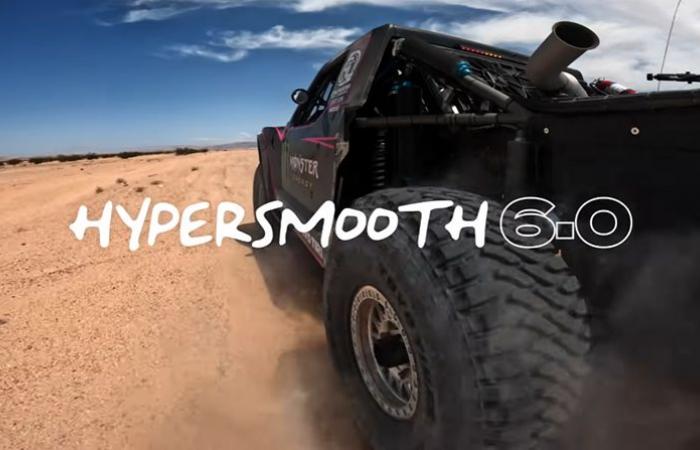
Why These Settings?
Stabilization is essential for professional-looking footage. 5.3K30, 4K60, and 2.7K120 offer options for different resolutions. Choose your preferred lens to control perspective, and set HyperSmooth to high for maximum stabilization.
If you want to film like professional, you should consider activating protune mode. Read more: BEST GoPro Hero 12 Protune Settings [Cheat Sheet Download]
Low Light
Embrace the night with stunning low-light shots using these settings:
- Resolution: 4K30 / 1080p60
- Lens: Wide
- HyperSmooth: High

Why These Settings?
Low-light conditions require special attention. 4K30 and 1080p60 offer flexibility. The wide lens captures more light, and High HyperSmooth ensures steady footage even in challenging lighting.
FPV Drone
Fly high with your FPV Drone and capture quality shots using these settings:
- Resolution: 5K30 / 4K60
- Lens: Wide
- HyperSmooth: Off
- ISO Max: 10

Why These Settings?
FPV drone footage benefits from sharpness and manual control. 5K30 and 4K60 provide excellent resolution. Turning HyperSmooth off allows for authentic FPV movement. ISO Max at 100 maintains optimal image quality.
TimeWarp
Master the art of TimeWarp with these Hero 12 settings:
- Resolution: 4K
- Lens: Linear
- Speed: 30x (for 10min+) / 15x (for 5-10min) / 5x or 10x (for 1-5min) / Auto.
- ISO Max: 100

Why These Settings?
TimeWarp adds a captivating dimension to your footage. 4K ensures clarity, and a linear lens provides a stable, natural perspective. Adjust the speed to match your content’s pace, and keep ISO Max at 100 for optimal image quality.
Are you interested to learn more TimeLapse and TimeWarp? Take a look at the article: GoPro Hero 12 Time Lapse & Time Warp GUIDE + Best Settings
Thanks for reading!
I hope this guide helped you know all about the GoPro Settings Cheat Sheet for your GoPro Hero 12 
Sharing is Caring 
If you found this article useful, please share it on social media with your family and friends!
Related Articles:
- 7 BEST External Microphones for GoPro Hero 12
- GoPro Hero 12 Battery: How Long Can You Film?
- 7 Best SD Cards for GoPro HERO 12
- GoPro Hero 12 Mic Adapter: Do You REALLY Need it?
Frequently Asked Questions
What are the best all-around settings for the GoPro Hero 12 Black?
For everyday travel and vlog footage, I default to 5.3K30 or 4K60 in the Wide lens with HyperSmooth set to High. That combo gives you sharp, stable footage with plenty of room to crop or reframe later without bloating your file sizes too much.
Should I shoot 5.3K or 4K on my Hero 12?
I reach for 5.3K30 when I want maximum detail for cropping or punching in during editing, and 4K60 when I need smoother motion for action shots or a slow-motion pass. Both look great on the Hero 12’s sensor, so it really comes down to whether resolution or frame rate matters more for that particular shot.
Is the GoPro Hero 12 Black still worth using in 2026 now that newer models exist?
Absolutely. GoPro has since released the Hero 13 Black and, in 2026, the new Mission 1 series, but the Hero 12 remains a fully capable action camera and this settings logic still applies exactly as written. HyperSmooth, TimeWarp, and ISO Max work the same way across these generations, so nothing here has gone stale.
What ISO Max should I use for low light on the Hero 12?
I bump ISO Max up into the 400 to 1600 range for indoor or low-light shooting so the camera lets in more light, then drop it back down to 100 once I’m back in daylight to keep noise out of the footage. It’s one of the quickest settings to adjust on the fly as lighting changes.
Do I need a GoPro subscription to use these camera settings?
No, nothing in this cheat sheet requires a subscription. GoPro Plus was renamed GoPro subscription, but that plan is about cloud backup, camera replacement, and unlimited cloud storage, not about unlocking shooting modes or settings on the camera itself.
Which app do I use to change settings or pull footage off my Hero 12?
You’ll use the GoPro mobile app, now simply called Quik, to connect over WiFi, tweak settings remotely, and transfer clips to your phone. GoPro discontinued the separate Quik desktop editing app, so for editing on a computer you’ll want to move your footage into a standard NLE instead.

