
Just picked up a GoPro Hero 12 and not sure where to start? The camera is more capable than it looks from the outside — and the settings menu can feel overwhelming the first time. This guide walks through everything you need to know to start shooting well, from the first power-on through editing your first clip.
![How to Use GoPro HERO 12 [Beginner’s Guide 2025]](https://projectgo.pro/wp-content/cache/flying-press/-Q52RuQMDMU-hqdefault.jpg)

- Video und Foto mit hohem Dynamikumfang: Die HERO12 Black bietet die beste Bildqualität ihrer Klasse...
- Unglaubliche Bildqualität: Mit 5.3K Video, das Ihnen 91% mehr Auflösung als...
- Emmy Award-gekrönte HyperSmooth 6.0 Stabilisierung: HyperSmooth setzt weiterhin den...
SD Card and Battery — Get These Right First
Before anything else, get your storage and power sorted. The Hero 12 requires a microSD card rated V30 or higher (also labeled U3 — they’re the same thing). Cards below V30 cause corrupted files and recording failures. A 128GB or 256GB card covers a full day of shooting at most settings — 256GB is the practical sweet spot between cost and capacity.
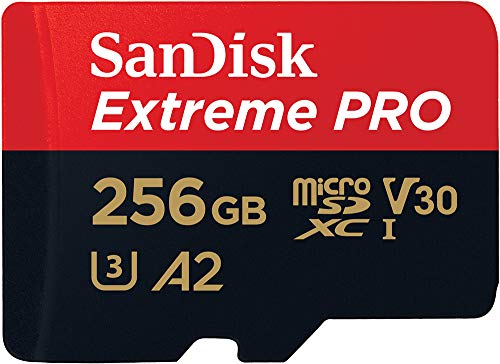
- The microSDXC memory card features write speed of around 60 MB/s that is sufficient...
- The 256 GB memory card provides you with adequate space to shoot and store ample of...
- Englisch...
Battery runtime at 4K 30fps is roughly 2 to 2.5 hours. For full days — skiing, hiking, travel — one battery isn’t enough in practice. Pick up a spare battery or two. Cold weather drains batteries faster, so if you’re shooting in winter, having two charged is essential.
Navigating the Hero 12: Two Buttons, One Touchscreen
The Hero 12 has two physical buttons: the Mode button on the side and the Rec button on top. The Mode button short-presses to cycle between video, photo, and time-lapse modes. Hold it to power the camera off. The Rec button starts and stops recording. It also works when the camera is powered off — if you enable Quick Capture in settings, a single press of Rec turns the camera on and immediately starts recording, which is exactly what you want when something is happening fast.
The touchscreen handles everything else: swipe left/right to change modes, swipe down for quick settings (Bluetooth, WiFi, language, SD card management), swipe up to open the gallery. Tap the settings icon to access video settings — resolution, frame rate, field of view, and stabilization.
Video Settings That Matter Most
Auflösung und Bildrate are the first decisions. For most everyday shooting, 4K bei 30fps is the practical choice — good quality, manageable file sizes, and enough resolution to crop or reframe in post. If you want slow motion, 1080p at 120fps or 240fps gives you 4x or 8x slow-down in editing.
Stabilisierung has three settings: Off, On (standard), and AutoBoost (maximum). AutoBoost crops the frame slightly to deliver the smoothest possible result — good for running, biking, or any high-movement activity. Standard is fine for walking or moderate movement. Leave it on AutoBoost by default and switch to Off only if you’re shooting on a gimbal that handles stabilization itself.
Field of view options run from HyperView (widest, immersive, distorted edges) through Wide, Linear (no distortion, natural perspective), and Narrow. For most action shots and selfie-style footage, Wide is the default. Linear is better for travel b-roll or any shot where you don’t want fisheye distortion.
Protune Settings for Better Footage
Protune is GoPro’s advanced settings layer — worth understanding even if you shoot mostly on auto. The settings that make the biggest practical difference are ISO, color, and sharpness.
Bringe ISO Min to 100 always. Set ISO Max to 800 or 1600 — going higher introduces visible noise in shadows. If you push it to 6400, nighttime footage will look grainy. Sharpness on Medium is the most versatile setting — High makes footage look processed, Low is too soft for most uses. For Farbprofil: Flat gives you the most latitude in color grading because it records the widest tonal range without baking in contrast. Natural is a good middle ground if you don’t plan to color grade. Vibrant applies heavy color and contrast straight out of camera — fine for social media content where you want punchy colors immediately.
For a deeper look at every setting and what it does, the GoPro settings guide covers all modes across Hero models, and the GoPro Protune guide goes deep on every Protune parameter.
Connecting to GoPro Quik and Quick Editing
Herunterladen der GoPro Quik-App on your phone (free). To connect: swipe down on the Hero 12’s main screen, tap Pair Device, and enable Bluetooth on your phone. Once paired, Quik lets you control all camera settings remotely, download footage directly to your phone, and upload to GoPro’s cloud storage when connected to WiFi.
For quick edits in Quik: go to the Mural section, add clips, and the app auto-generates a highlight edit with music. You can then trim individual clips, adjust speed, change music, and add filters — all within the app. For more control and better results, desktop editing software like Final Cut Pro or Premiere Pro gives you full flexibility, but Quik is genuinely useful for fast social media clips from your phone.
For a full battery life breakdown and tips on extending runtime, see the GoPro battery life guide. For slow motion settings specifically, the GoPro slow motion guide covers frame rates and best practices.
GoPro Hero 12 needs a microSD card rated V30 or higher (also labeled U3). Cards below V30 cause corrupted files and recording failures. A 128GB or 256GB card is recommended for a full day of shooting.
Quick Capture lets you press the Rec button once while the camera is off to immediately start recording. Enable it in the camera’s general settings menu. It’s useful whenever you need to capture something quickly without waiting for the camera to fully boot up.
AutoBoost gives the smoothest result by applying maximum stabilization with a slight crop to the frame. Use it for running, cycling, or any high-movement activity. Standard is fine for walking. Turn stabilization off only if you’re using a gimbal that handles stabilization externally.
Use Flat if you plan to color grade your footage — it preserves the most tonal information. Use Natural for a balanced, ready-to-use look without grading. Use Vibrant for punchy, high-contrast footage straight out of camera for immediate social media use.

 English
  Italiano
  Deutsch
  Español
  Português
  Nederlands
  Français